How to Set Up a Project in Crexels.io: The Full Walkthrough
How to Set Up a Project in Crexels.io: The Full Walkthrough
Published 2026-08-17 · Crexels.io
Twenty years running productions on spreadsheets, group texts, and a Google Doc nobody remembered to update, and starting a new project always took longer than it should have. Client info in one file, the shot list in another, deliverables in a text thread, budget in whatever spreadsheet didn't get overwritten last week.
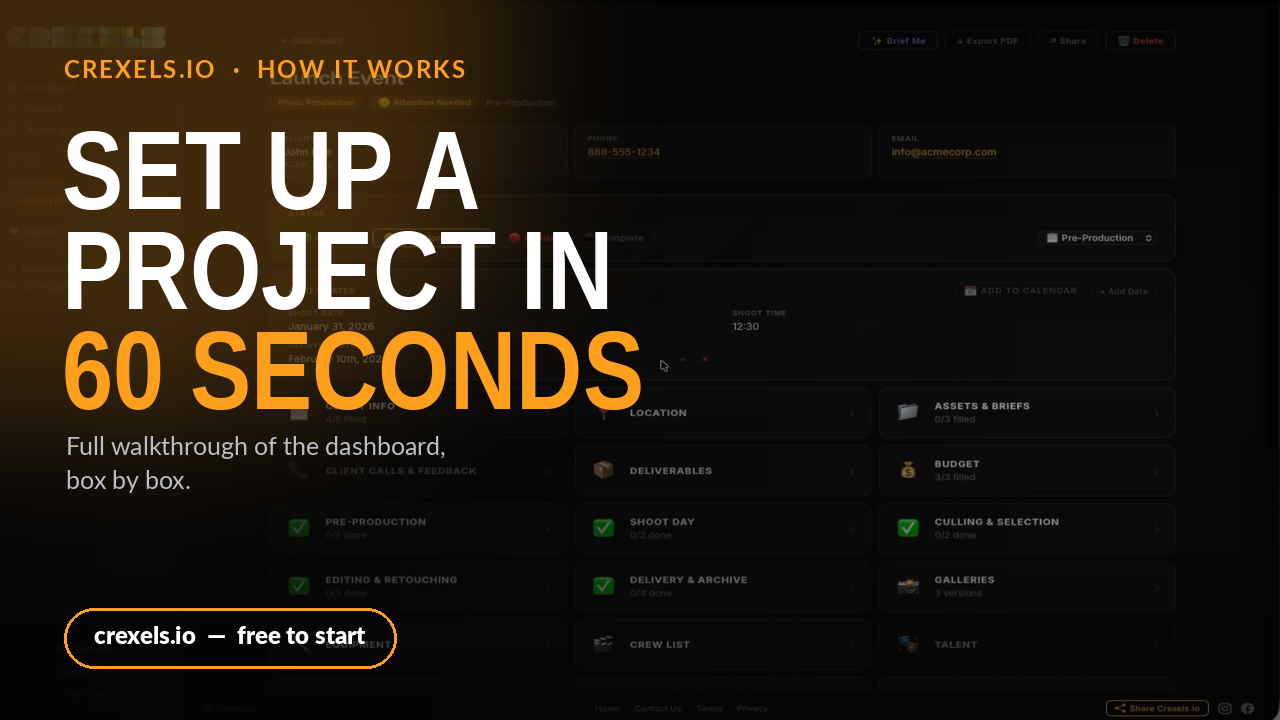
Crexels.io puts all of it in one place, and starting a project takes under a minute. We recorded the whole thing, start to finish. Here's what's in it.
Watch the full walkthrough (2:10)
1. Start a new project, in under a minute
Hit New Project and the setup asks for exactly what you need to get moving, nothing more:
- A short client code, then the client or company name
- The project type — photo, video, or social — which builds a different checklist automatically depending on what you pick
- A project name, which fills in its own project ID (that becomes the folder name, so no spaces)
- Client contact info, address, shoot date and time, delivery date, shoot location, and a ballpark budget
Hit Create Project, and the page is live. That's the whole setup.
2. The project page: status and key dates
The client's name, phone, and email sit right at the top, so you're never hunting for them. Below that, a status field — On Track, Attention Needed, At Risk, Complete — that you update as the project moves, so anyone glancing at the dashboard knows where things stand without asking.
Key Dates holds the shoot day and delivery day, each one click away from your calendar.
3. Client info, location, assets and briefs
Everything about the shoot lives in its own box below the summary:
- Client Info holds the contact details from setup
- Location is where you're shooting
- Assets and Briefs is where the brief, the shot list, and the mood board live, linked from Drive or uploaded directly
There's also a spot for anything else the crew needs on the day, a venue website, a phone number, a broadcast master's code if the piece is going to air.
4. Deliverables: what you're actually handing the client
This is the box that keeps a project from drifting. Aspect ratio, cut lengths, which versions are actually owed, hero cut, rough cut, final approved, social cut, whatever this particular project needs. Locking it here means nobody's guessing three weeks in what "the deliverables" were supposed to be.
5. Calls, budget, and the production checklist
Client Calls and Feedback keeps a running log of every conversation, so the context doesn't live in someone's memory or a missed text. Budget tracks what was quoted against what's actually been spent, updated as the project runs instead of reconciled after the fact.
Below that, a checklist for every stage of the job:
- Pre-Production
- Shoot Day
- Culling and Selection
- Editing and Retouching
- Delivery and Archive
Nothing skips a step because nobody remembered to check.
6. Crew, equipment, talent, vendors, and files
The rest of the page is the logistics that usually live in five different apps:
- Galleries for the delivered versions
- Equipment and Crew List — what's packed, who's booked
- Talent for anyone in front of the camera
- Notes and Calls for anything worth writing down before it's forgotten
- Vendors for anyone being subcontracted, pulled from past vendors or added new
- Releases, To Do, and Files to round it out
Every box on the page again, one project, no other app open.
7. The AI assistant that ties it together
An AI assistant sits on every project. Tell it anything in plain English, an update, a change, a note, and it reads the project and figures out what to do with it, asking for confirmation before anything logs. It's the part that turns "I'll update that later" into something that actually gets updated.
Ready to run your next project this way?
Every project, one place, from first booking to client delivery. Free to start, no credit card required.
Start free at crexels.io
Ready to organize your productions?
Crexels.io is free to start — no credit card required.
Start Free Today